

Key Takeaways
- Venngage is the clearest choice when you need a documented Brand Kit that applies a logo, colors, and fonts across designs.
- Design.com is worth testing when you want AI-generated options tied to a business name and brand-style templates.
- Canva, PixExact, Pixazo, Piktochart, and Adobe Express offer useful creation routes, but their listed features do not establish the same brand-asset controls.
- For any tool, check the final flyer at its actual print or screen size, and confirm export, asset, and plan details before committing.
Table of Contents
- What should a Halloween flyer tool do with your brand assets?
- Which tool is strongest for applying brand assets automatically?
- Is Design.com a good fit for branded Halloween flyer concepts?
- Which tools are best for fast Halloween-style drafts?
- When should you start with an Adobe Express Halloween template?
- How do you choose based on your team and event?
- How can you protect readability and brand consistency?
- What should you verify before choosing a tool?
- Frequently Asked Questions
- Key points to remember
The best AI tools for creating Halloween event flyers from brand assets depend on whether you need automatic brand application, quick AI concepts, or an editable design you can finish yourself. Based on the features the providers describe, Venngage has the strongest documented brand controls, while Design.com, Canva, and Halloween-focused generators can be useful for different parts of the workflow.
What should a Halloween flyer tool do with your brand assets?
Brand assets are the visual elements that help people recognize an organization, such as its logo, color palette, and typefaces. A useful flyer workflow should keep those elements recognizable while adding Halloween details without making the event information hard to read.
Start by separating what you need from what you already have. A small business may have a logo and approved colors but no formal type system; a larger team may need those elements applied consistently across several versions. A generator that produces a striking first draft is not automatically a brand-management tool.
| Need | What to look for | Why it matters |
|---|---|---|
| Consistent identity | A stated way to apply a logo, colors, and fonts | It reduces the number of brand details you must repair by hand. |
| Fast concepting | Prompt-based generation or Halloween-specific templates | It helps you explore a seasonal visual direction quickly. |
| Team review | Collaboration or template controls | It can help a team keep changes within an approved design. |
| Print and digital use | Editable layouts and suitable export choices | A flyer for a community board has different needs from a social post. |
Before choosing a tool, make a short asset checklist: approved logo file, brand colors, preferred fonts, event name, date and time, location, admission details, and a contact or registration method. The event facts should be final before you ask AI to design around them; otherwise, you may spend time polishing a draft that still needs structural changes.
Which tool is strongest for applying brand assets automatically?
Venngage is the most directly supported choice for automatic brand consistency in the listed tools. Venngage describes a Brand Kit that applies a logo, colors, and fonts across designs, and also lists team collaboration and template locking.
Those functions address a different problem from simply generating Halloween artwork. If several employees need to make event flyers, a shared brand setup and locked template can help limit unplanned changes to core identity elements. Venngage also describes its AI flyer output as editable and print-ready, and says its generator creates a design from a description in 30 seconds.
For accessibility review, Venngage says it includes a built-in WCAG accessibility check for contrast and readability. Treat that as a review aid, not a replacement for checking the flyer yourself: inspect the smallest text, contrast over decorative backgrounds, and whether essential details remain legible when viewed at the size people will actually see.
- Choose Venngage when: your priority is documented brand application, team consistency, or a flyer that remains editable.
- Test it carefully when: your team depends on a specific export format, exact print setup, or a particular asset-upload workflow. The listed product details do not specify every file format or asset constraint.
- Use its template controls for: a recurring event series where the logo and information hierarchy should remain stable while seasonal graphics change.
As of October 1, 2026, Venngage lists print sizes including 8.5 × 11 inches (Letter). That provides a concrete starting point for a standard U.S. handout, but confirm the final document dimensions and print requirements in the editor before ordering or sending a file to a printer.
Is Design.com a good fit for branded Halloween flyer concepts?
Design.com says its generator can use a business name or short prompt to create on-brand design options, and describes a drag-and-drop editor for changing fonts, colors, layouts, and shapes. That makes it a reasonable candidate when you want AI-assisted concepts that begin with your business identity and still expect to edit the result.
Its product page also describes a large template library and says that creating a flyer unlocks access to more design tools and templates. Those are provider claims about the service; they do not by themselves confirm that your exact logo file, brand rules, or team approval process will be handled the way you need. Test a real event brief before building your whole seasonal workflow around it.
- Enter the organization or event name exactly as it should appear.
- Describe the audience, event type, mood, and the Halloween elements you want, such as pumpkins or a fall night-market atmosphere.
- Review the generated options for logo placement, color fidelity, and space for practical event information.
- Use the editor to adjust layout, type, and color; then check whether the finished design matches your approved brand assets.
Design.com may suit a solo organizer who wants several starting concepts and is comfortable checking them manually. A team that needs reliable, centrally managed brand application should compare its actual workflow with Venngage’s stated Brand Kit and template controls rather than assuming “on-brand” means the same thing across products.
Which tools are best for fast Halloween-style drafts?
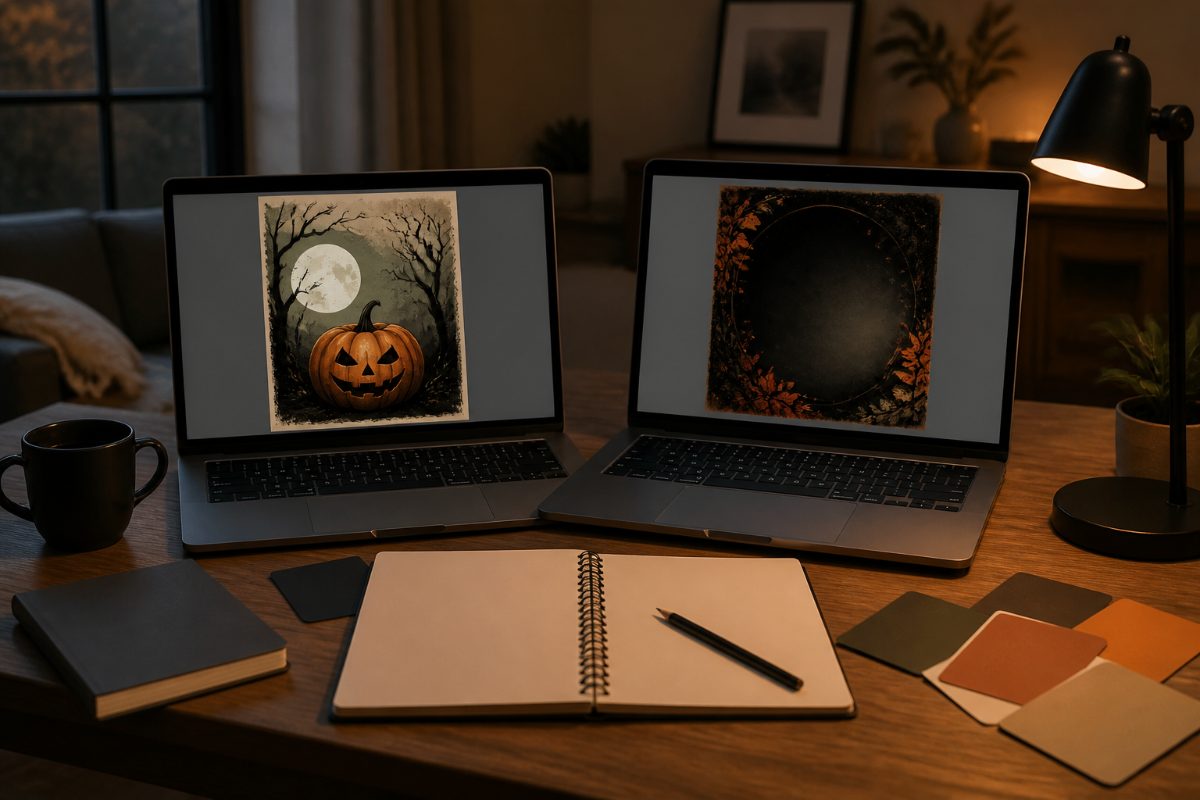
PixExact and Pixazo are the most explicitly Halloween-specific prompt-driven options in this group. PixExact describes generating a complete flyer design from a prompt, including the headline, layout, imagery, and typography in one pass; Pixazo describes generating a Halloween flyer and refining it by adjusting the prompt, including requests to change the color palette.
These tools can help you explore a seasonal look quickly, but their described features do not establish automatic brand-kit support. Use them to develop a visual direction, then inspect every brand element and event detail rather than assuming the first output is ready to publish.
Canva offers another flexible route: its flyer page describes templates, drag-and-drop editing, and tools such as Magic Write, Magic Media, and Magic Edit. Canva says users can change text, fonts, and colors, and save designs as PDF, JPG, or PNG. The listed page does not establish that every brand asset will be automatically applied to a Halloween flyer, so treat brand setup and final checks as part of the work.
Piktochart describes prompt-based AI generation for editable party and event flyers and lists 60 monthly AI credits. That credit allowance may be useful to consider if you expect to iterate on several concepts, but check the current plan terms and how the credits apply before relying on a particular number of generations.
| Tool | Documented route | Best role in the workflow |
|---|---|---|
| PixExact | Prompt creates headline, layout, imagery, and typography together | Rapid first draft for a Halloween-specific concept |
| Pixazo | Generate a Halloween flyer, then refine the prompt, including palette changes | Exploring and adjusting the overall seasonal direction |
| Canva | Flyer templates, drag-and-drop editing, and listed AI tools | Manual finishing and adapting a layout for different uses |
| Piktochart | Prompt-based editable event flyers; 60 monthly AI credits listed | Drafting multiple event concepts within its credit system |
A good division of labor is to let a generator suggest composition and atmosphere, then manually verify the logo, color values, type, and event copy. That keeps AI focused on ideation instead of asking it to make decisions about brand details that the product description does not promise to preserve.
When should you start with an Adobe Express Halloween template?
Adobe Express lists a dedicated collection of Halloween flyer templates. That makes it a practical starting point if you would rather select a seasonal layout and customize it than generate the entire design from a text prompt.
The template listing does not, by itself, confirm specific automatic brand-kit functions or print-export settings. If you consider Adobe Express, use the template as a visual starting point, then confirm in the editor that you can place and adjust your assets as needed and export in a format appropriate for your distribution method.
Template-first design can also help when the flyer has fixed content. You can choose a layout with an appropriate information hierarchy, then replace sample wording with the real event name, date, venue, and call to action. Do not keep decorative text or placeholder details just because they came with a polished template.
How do you choose based on your team and event?
The right choice changes with the people creating the flyer and how the design will be distributed. A solo organizer may value speed and editable layouts; a marketing team may care more about repeatable brand controls and review; a print-first community event needs a clear handout layout and a verified output file.
| Your situation | Start by testing | Reason |
|---|---|---|
| One person, one event, no formal brand kit | PixExact, Pixazo, Canva, or an Adobe Express Halloween template | These offer prompt-based or template-based starting points for a seasonal design. |
| Small business with approved logo, colors, and fonts | Venngage or Design.com | Venngage documents automatic Brand Kit application; Design.com describes business-name prompts and on-brand options. |
| Several contributors making related flyers | Venngage | Its listed collaboration and template-locking features address consistency across users. |
| Many drafts and prompt iterations | Piktochart or a prompt-based Halloween generator | Piktochart lists monthly AI credits, while Pixazo describes prompt refinement. |
| Print and social versions from one concept | Canva or Venngage | Both describe editable flyer workflows; verify dimensions and export needs for each destination. |
For a first-time organizer, begin with a template or a single prompt and lock down the event facts before refining the art. For an experienced marketer, compare how well each candidate preserves the actual brand assets and whether collaborators can work within an approved layout. Run a small test using a real logo and one representative event before choosing a tool for a full campaign.
How can you protect readability and brand consistency?
A Halloween theme should frame the event information, not compete with it. A flyer can include pumpkins, bats, or a dark palette and still fail if the date, location, or ticket instructions disappear into the artwork.
- Put the essential facts in the prompt. Include the event name, audience, date, time, venue, and registration or admission information. This gives the design a clear content structure.
- Use a specific visual brief. Name the brand colors and the seasonal mood you want, and say what should remain visually prominent. A prompt can guide a draft, but it is not a substitute for checking the finished design.
- Check the logo separately. Look for distortion, poor contrast, or placement that makes the mark feel detached from the rest of the layout. Replace or reposition it manually if needed.
- Review small text and contrast. Inspect the least prominent details at the intended viewing size. Venngage’s listed WCAG check can support contrast and readability review, but you should still inspect the final composition.
- Proof the exact export. Read the date, address, URL, and any entry details in the file you will distribute—not only in the editor preview.
- Make a separate version when the destination changes. A print handout and a social graphic may need different crops and text sizes. Canva describes saving flyers as PDF, JPG, or PNG, but choose the file and dimensions that fit your actual use.
A common mistake is to treat a generated “on-brand” look as proof that the correct brand assets were applied. A design can feel stylistically consistent while using an inaccurate shade, a substitute typeface, or a poorly rendered logo. Compare the final flyer against your approved files and standards, not just against the prompt you entered.
What should you verify before choosing a tool?
Product pages describe different levels of detail, so compare demonstrated features rather than broad labels such as “AI flyer maker.” The available descriptions do not specify every plan price, upload limitation, licensing term, export restriction, or brand-file workflow for every product.
- Asset handling: Can you place the actual logo and set the approved colors and fonts, or does the product only take a text prompt?
- Editing: Can you move elements and correct generated text after the draft is created?
- Team use: Are collaboration and template restrictions available if more than one person will edit?
- Output: Does the editor provide the dimensions and file type required for your printer, website, or social channel?
- Cost and limits: Check current plan details, trial conditions, and any generation-credit rules. Piktochart lists 60 monthly AI credits, but confirm current terms before budgeting around that allowance.
- Usage rights: Review the service’s current terms for generated content, uploaded assets, and commercial use before publishing a business promotion.
These checks are especially useful when an event has sponsor logos, co-hosts, or several brand owners. A quick draft may save design time, but the review and export steps determine whether the result is actually usable.
Frequently Asked Questions
What is the best AI tool for a Halloween flyer with a company logo?
Venngage is the strongest documented fit in this comparison because it says its Brand Kit applies a logo, colors, and fonts across designs. Test your own logo and confirm export requirements before adopting it for a campaign.
Can a Halloween flyer generator keep my brand colors?
Some product descriptions document brand controls, while others describe prompt-based design or manual editing. Venngage states that its Brand Kit applies colors, and Pixazo says users can refine a prompt to change the palette; neither description means you should skip checking the final colors against your official specifications.
Which tool is best if I want a flyer quickly?
PixExact describes generating a complete design from a prompt, while Pixazo describes creating and refining Halloween flyers through prompts. Canva and Adobe Express offer template-based starting points if you prefer to edit an existing layout.
Can I use an AI-generated Halloween flyer for printing?
Venngage describes its AI flyer as editable and print-ready. As of October 1, 2026, it lists 8.5 × 11-inch Letter among its print sizes. Confirm the dimensions, file format, text legibility, and printer requirements for your specific job before sending it to print.
Do these tools automatically make every design accessible?
Venngage says it includes a WCAG accessibility check for contrast and readability. That feature is a useful review step, but inspect the final flyer yourself to ensure essential information is easy to read.
Key points to remember
For automatic brand application, begin with Venngage; for AI-assisted concepts connected to a business name, test Design.com; for Halloween-specific prompt drafts, compare PixExact and Pixazo. Canva, Piktochart, and Adobe Express provide other template or editing paths, but verify their actual asset controls, plan terms, and export options before relying on them.
Choose with a real event brief, not a generic demo prompt. Add the approved assets, verify every event detail, and inspect the exported flyer at its intended size. Tool features and plan terms can change, so check the product’s current documentation before making a purchasing or production decision.
References
- Free AI Halloween Flyer Generator - Party & Event Flyers | PixExact
- AI Halloween Flyer Maker | Pixazo
- Free AI Flyer Generator From Text
- Free AI Flyer Generator | Design.com
- Free Online Flyer Maker: Design Custom Flyers With Canva
- Free AI Party Flyer Generator
- Free Halloween Flyer Templates | Adobe Express
Information in this post was checked as of October 2026. Policies and prices may change, so please verify important details with official sources.